Scan without losing your place
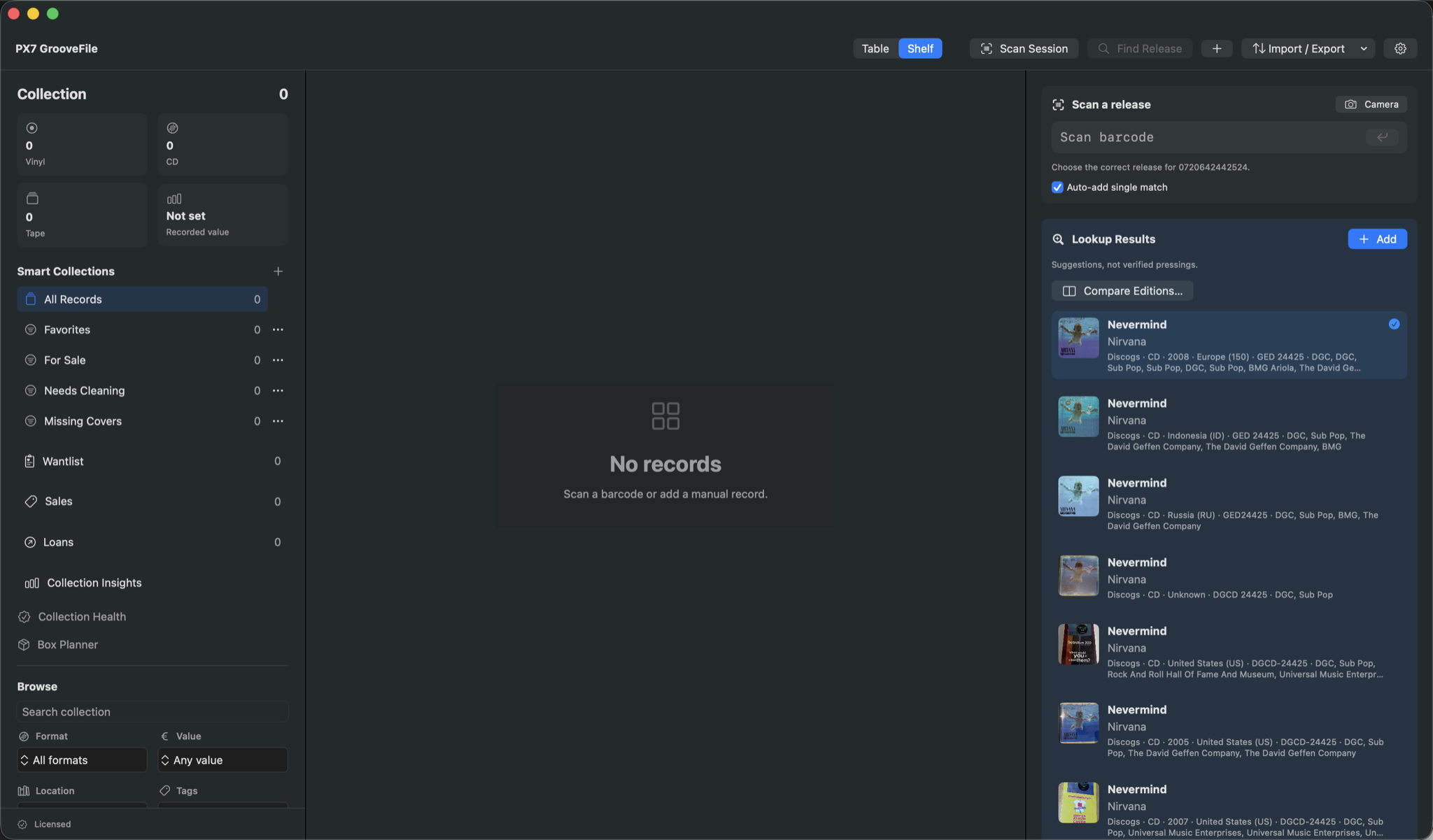
Continuous Queue saves pending scans across restart. Keep scanning while ambiguous matches wait for your choice, retry offline failures and confirm saved copies. Finish pending scans before changing libraries; the queue is local to this Mac.
Your preferred artist names
Review name variants, choose a preferred display name and preview the exact copies affected. Original credits and provider identities stay intact. Nothing is merged by name alone, and changes support Undo.
Compare your copies
Compare selected physical copies side by side: editions, condition, tracks, photos, placement and prices. Choose which copies to keep or price for sale without merging different editions.
Ready-to-share sale advertisements
Save local English or Danish templates with condition, asking prices, pickup location and terms. Choose copy photos, preview, then copy text or export individual ads and a combined Markdown list. Private fields stay out by default and photo GPS metadata is removed.
Keep your own corrections
Review replacement edition fields before applying them, even during a scan session. Late value replies respect a changed edition or your later edits. Saved release links are references, not invented field-level history. Failed saves keep the pending choice for retry.
Find records from Spotlight
Enable local Spotlight indexing in Settings, then search by artist, title or barcode. Open the exact owned copy with its format, condition and location. Private notes and prices stay out of the index.
Use Mac Shortcuts
Check whether you own a record, log a listening or open Play Next from the Mac Shortcuts app. Choose the exact copy; listening is confirmed only after saving and supports Undo.
One record workspace
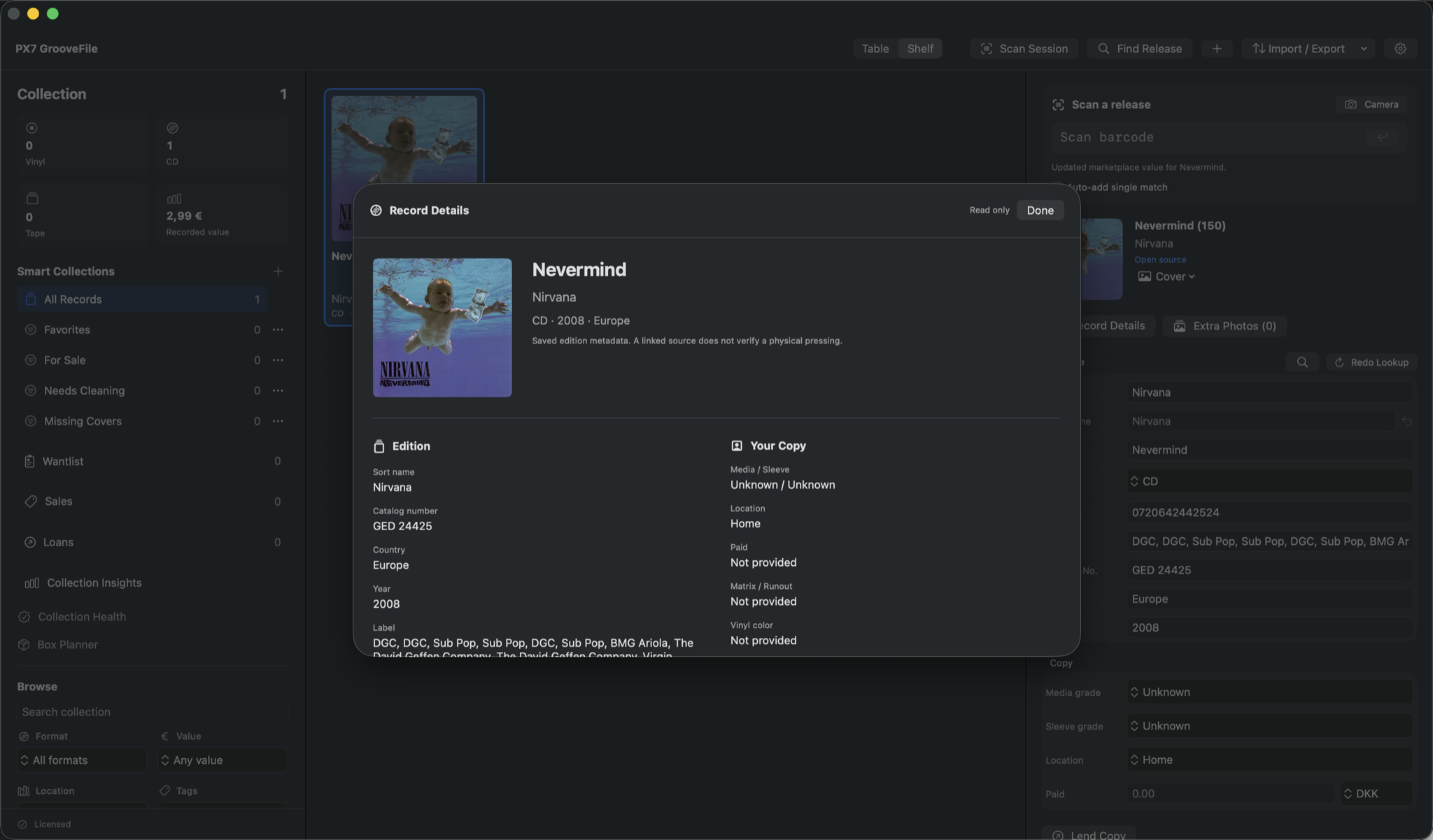
Move between details, tracks, credits, photos and pressing evidence without opening separate windows. Drafts stay in place when you switch tabs, and closing checks for unsaved changes.
Review collection values
Fetch Discogs estimates for all records, a filtered collection or selected copies. Pause and resume the queue, review prices before saving and undo a batch. Manual values stay protected; missing prices never erase saved amounts.
Check before buying another copy
See related owned editions beside scan results. In the native iPhone/iPad app, compare barcodes and albums against your local collection, even offline. A missing match is not proof that you do not own the album.
Your copies on iPhone and iPad
Edit condition, location, prices, notes and photos in the native app. Optional private iCloud sync connects your Apple devices. Currently in internal TestFlight, not yet publicly available.
Tracks and credits
See the tracks on your edition, with disc and side positions, durations, musicians and production credits. Preview source metadata before saving. Keep the original album year separate from your edition's year, with genres, styles and vinyl size and speed.
Artists, labels and connections
Open an artist or label to see your own copies, editions, years and contributor roles. Linked source IDs distinguish namesakes. Choose Discover Online to browse source releases and add a specific edition to your Wantlist.
Fill missing music data
Fetch missing tracks, credits, genres, styles and original years for the whole collection or a selection. Pause and resume the review, choose fields before applying, and undo the batch. Your saved details and music edits stay protected.
What to play next
Queue records, log a listen with a date, notes and rating, or revisit records you haven't logged recently. Find an album or track on Apple Music. Streaming editions may differ from your physical copy.
Keep incoming stacks together
Create named acquisition and sale batches, independently of location. Scan new copies into a batch, track progress and keep dated history as copies are moved or sold. Shared purchase details and normal sales actions stay together in the Batches workspace.
Choose something to play
Find an available copy within your time limit, or an album not yet in your owned copies' listening logs. Choose for Me considers album groups before extra copies, then lets you open, queue or log the exact copy. Suggestions use saved metadata and prepare in the background; incomplete times cannot satisfy a time limit.
Find the physical copy
Add room and rack levels above saved boxes or shelves, with each copy's current position. Scan a box to check found, missing, misplaced and unregistered copies without automatic moves or deletions. Checks survive restart; QR labels open box contents and addresses in the native iPhone/iPad app.
No barcode? Search instead
Find a release by artist, title and catalog number using MusicBrainz and optional Discogs data. Compare editions before adding one. Your preferred country puts likely local pressings first.
Table and Shelf views
Browse album covers or sort the table by clicking a column heading. Group artists by letter and jump through your collection with the alphabet index. Covers are cached on the Mac. Add your own cover from a file or photograph.
Storage
Drag records onto Storage or Active Records in the sidebar, or right-click to move them. Move several copies together and undo the change when needed. Stored records still count as owned, remain in backups and appear when you check a barcode in the shop.
Smart Collections
Save filters, tags and sorting as a collection in the sidebar. Keep Favorites, For Sale or Needs Cleaning one click away, with matching counts. Drag records into tag-based collections to add their tags.
Wantlist
Keep wanted releases separate from records you own, with preferred pressings and target prices. When you buy one, mark it as acquired and enter what you actually paid. Undo reverses the move.
Sales
Prepare selected copies for sale with fixed or percentage-based asking prices, currency conversion, rounding and a minimum price. Review prices before saving, preserve existing listings and undo the batch together. Export a Markdown table or list. When a copy sells, record the actual price, fees and date. Sold copies stay in history without counting as records you still own.
Collection Health
Find missing covers, years, conditions and locations. Preview changes for several records, choose which fields to fill and undo the batch in one step. Existing details stay untouched.
Multiple copies and editions
Keep separate condition, location, purchase price, tags and notes for each copy. Titles show the release country. Compare the same album across different barcodes and formats, including years, labels and catalog numbers. Nothing is merged or deleted.
Identify a pressing
Record matrix and runout markings by disc and side. Read text from your saved photos locally, then compare source editions. Keep a pressing unresolved, likely or confirmed by you after checking the physical copy. A barcode alone cannot verify a pressing.
Import and export
Import CSV with column mapping and a preview before adding records. Export the owned collection, a saved Smart Collection, your Wantlist or matching sales as CSV or Markdown. Export shown records as a Markdown table or list with your choice of fields, defaulting to Artist, Title and Media. Optional Asking Price and Sale Price fields retain their currencies; Sales offers the same field and layout choices.
Your collection columns
Choose visible table columns separately for Active Records, Storage, All Records and each Smart Collection. Choices persist on your Mac. Add Paid, Asking Price and Media Condition, or restore the current collection's default columns.
Photos of each copy
Keep front, back, label, matrix/runout and damage photos with the right record. Import images or use a camera, add captions and zoom in on details. Complete backups and Mac sync include the saved photos.
PDF collection reports
Make a dated report for your whole collection, a filtered collection or selected records. Include covers, condition, location, paid prices and recorded values, with separate currency totals and clearly marked missing amounts. Optional conversion includes the exchange-rate date. For documentation, not a professional appraisal.
Loans
Keep track of who borrowed each copy, when it went out and when it is due back. See overdue loans and record returns. Loaned copies stay in your collection, with Undo for corrections.
Collection Insights
See the recorded value and purchase cost of your CDs, vinyl or a saved collection. Combine format, tags and other filters, or view all records. Missing amounts are counted separately, and every owned copy counts even when duplicate covers are hidden.
Native scanning and boxes
Capture one barcode at a time, review matching editions and save your copy in the native app. Open box QR labels, check contents and find the right placement without browser pairing.
Box Planner
Set how many records fit in a box, then follow the covers and numbered slots. Letter dividers show where each section starts without taking a slot. Export a packing checklist or save the box names as locations.
Artist sorting
Use the source's sort name, your own spelling, or the displayed artist. Bob Dylan can sit under D and The Jayhawks under J. Bands are not rearranged by guessing a surname.
Display currency
Optionally show approximate totals and table values in DKK, EUR or another supported currency using dated ECB reference rates. The original amounts and currencies stay unchanged.
Complete Mac backups
Archive Backup saves your collection and images in one checksummed file, including saved collections, Wantlist, sales and loans. Restore validates the recovery data first. JSON, CSV and Markdown recovery formats remain available. Ordinary sharing exports are separate.
Optional iCloud sync: Beta
Connect your Mac, iPhone and iPad to your private iCloud collection. Review conflicting changes and keep an independent backup. Physical multi-device acceptance is still pending. Read setup and recovery details.